Parts of the lower school and middle school building have gotten much worse during construction for cell phone connections. I don’t think it will change unless a more powerful signal is put in our area.
One feature that can alleviate this problem is “Wi-Fi Calling.” Some phones have the capability to use your Wi-Fi connection to help get your cell phone to connect for calls and text messages.
This article explains more about the concept and gives links to instructions for different cell service providers and compatible phone information. Thanks to @bradleychambers on Twitter for the information!
http://boundless.aerohive.com/experts/How-To-Use-Wi-Fi-To-Elimate-Cellular-Dead-Spots.html
If you have tried this feature in the past and it did not work, you may want to try again. The IT Director recently made some firewall changes necessary to support it.
An iPhone 6 Plus on AT&T has been tested and connected successfully to the service. Tests on other carriers or models have not been done.
Let the IT Director know if you have a Samsung phone and you are connecting it. He would like to see the settings for that.
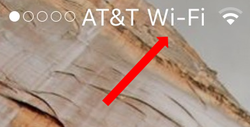
P.S. When connected on an iPhone you will see the “Wi-Fi” letters in the upper left hand corner of your device.
One feature that can alleviate this problem is “Wi-Fi Calling.” Some phones have the capability to use your Wi-Fi connection to help get your cell phone to connect for calls and text messages.
This article explains more about the concept and gives links to instructions for different cell service providers and compatible phone information. Thanks to @bradleychambers on Twitter for the information!
http://boundless.aerohive.com/experts/How-To-Use-Wi-Fi-To-Elimate-Cellular-Dead-Spots.html
If you have tried this feature in the past and it did not work, you may want to try again. The IT Director recently made some firewall changes necessary to support it.
An iPhone 6 Plus on AT&T has been tested and connected successfully to the service. Tests on other carriers or models have not been done.
Let the IT Director know if you have a Samsung phone and you are connecting it. He would like to see the settings for that.
P.S. When connected on an iPhone you will see the “Wi-Fi” letters in the upper left hand corner of your device.
 RSS Feed